

How To Separate Objects In Blender?
Blender is a powerful 3D modeling software that allows users to create, modify, and manipulate 3D objects easily. One essential feature of Blender is the ability to separate objects, which can help streamline workflows, improve modeling efficiency, and enable better control over different components of a model. This guide will walk you through various methods to separate objects in Blender.
Ways to separate objects in Blender
There are several ways to separate objects in a blender. You have to select the methods for separating them based on the objects and their characteristics, such as whether they are independent or attached parts.
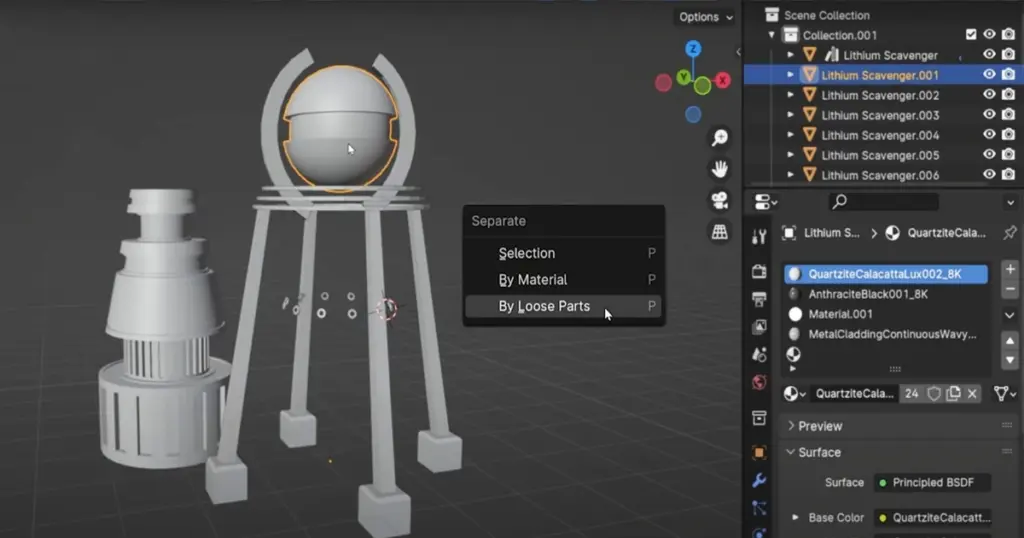
Using the ‘Separate’ Command (P Key)
This is the most common way to separate objects in Blender. Follow these steps:
- Enter Edit Mode: Select your object and press Tab to switch to Edit Mode. Select the Part to Separate: Choose the vertices, edges, or faces that you want to separate. Use L to select linked geometry or B for box selection.
- Press P Key: This brings up the Separate menu with three options:
- Selection: Before you separate the objects, select the parts. Separates only the selected geometry into a new object.
- By Material: When the object consists of an extension part, then you don’t need to select the option by pressing “p” and selecting the by material option. Splits the object based on the assigned materials.
- By Loose Parts: Separates all unconnected geometry into individual objects.
- Exit Edit Mode: Press Tab to return to Object Mode. You will now see the separated part as a new object.
How To Separate Two Objects In Blender?
Enter edit mode as indicated, then choose what you wish to separate to separate the objects from each other or the specific elements from the item. I have chosen the original or default cube in our situation, from which I previously made another cube. Ctrl+L may be used to select every vertex. After selecting every vertex, you may locate a distinct icon using the p key on the keyboard or right-clicking it to bring up the menu. All you need to do now is split the chosen pieces into a new object by selecting the “selection” option from the three possibilities provided.
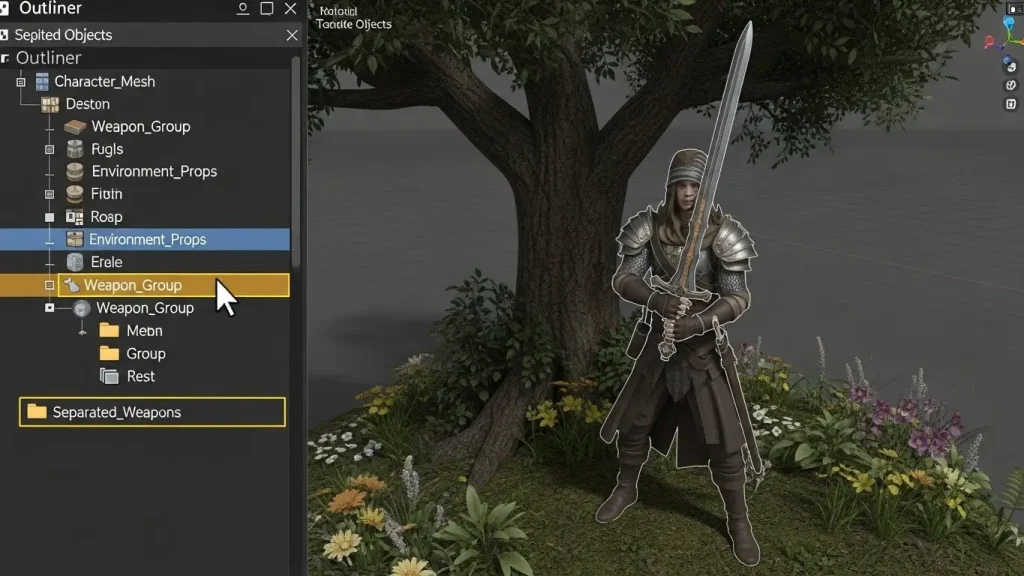
How Can I Separate Fragments of an Object in Blender? (By Material)
To separate a part of an object you have to press o and select manually then you can separate different parts of objects. If you want to separate multiple parts from an object you can use this method
How do I separate independent parts of an object? (by loose parts)
Each independent component that makes up an object is unique from the others. Likewise, switch to edit mode if the object is in object mode. To choose the option by loose components, use the p key on the keyboard.
How do you know that the whole thing is made up of several parts? Press the L key (Linked Faces) to choose the particular fragment. Each component of the primary item can be eliminated by using the L key. You’ll see that a face or edge is disconnected. The entire object’s components are simply joined.
By now, you should be able to divide objects in Blender securely. These are some pertinent and commonly asked questions that you may find useful.
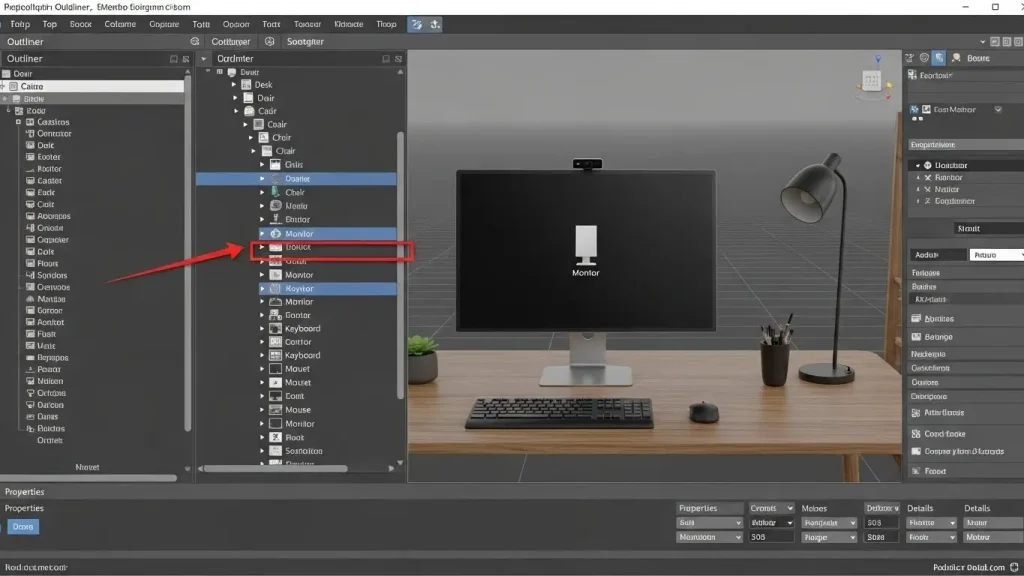
Separating Objects Using the Outliner
If your model consists of multiple objects combined, you can separate them in the Outliner:
Open the Outliner Panel, which is located in the top right corner by default. Find the combined object, then right-click on it. Choose either Unlink or manually remove any unnecessary items or parts.
Using Boolean Operations
If you need precise cuts before separating:
Add a Boolean Modifier (Modifiers > Boolean). Set the operation to Difference, Union, or Intersect. Apply the modifier and separate using the P key as described earlier.
Conclusion
Blender is a popular 3D modeling software. When you use this software, you frequently have to separate or join objects. We discussed here a few ways to separate objects in Blender. The more you use this software, the more you learn and become an expert in it.
FAQ
How to ungroup objects in Blender?
To ungroup objects in Blender, select the grouped objects, then press Shift + Ctrl + G or go to the Object → Group → Remove from Group menu. This separates them so that each object can be edited individually.
How to unlink two objects in Blender?
To unlink two objects in Blender, select the objects, then use Alt + P and select “Clear Parent” to remove any parent-child relationships, allowing the objects to be moved and transformed independently.
How to join objects in Blender Reddit?
To join objects in Blender, select the joined object in Edit mode, then press P and select “By Loose Parts”. This splits the mesh into separate objects while keeping them in the same view.
How to select separate objects in Blender Shortcuts?
In Blender, to quickly select separate objects, use L while hovering over a connected mesh in Edit Mode, to select linked parts, or Shift + Right-Click in Object Mode, to select multiple separate objects.
How to separate an object from a mesh?
In Blender, to separate an object from a mesh:
Select the mesh and enter Edit Mode (tab).
Select the part you want to separate.
Press P and select “Select”.
This creates a new object from the selected mesh part.
What is Ctrl+R in Blender?
In Blender, Ctrl+R is the Loop Cut shortcut. It allows you to add a new edge loop to a mesh, which helps refine the geometry and add more detail for modeling.